


did you know that almost 25% of social feeds are invisible to folks who use screen readers because creators skip adding image descriptions? That’s a huge chunk of your potential audience you’re missing out on, which means fewer genuine connections and less reach for your content. This quick guide will walk you through what Instagram alt text is, why it’s a big deal in 2025, and exactly how to add it to both new and old posts so your content is both inclusive and super searchable.
Writing clear alt text not only helps screen reader users understand your image but also gives the algorithm a hint about what your post is about! To quickly add or edit it, just head to Advanced Settings > Write Alt Text on mobile, or look under Accessibility on desktop, and while Stories don’t have this feature, you can use captions or text stickers instead.
Key Takeaways
- Own your descriptions: custom alt text improves accessibility and discovery.
- Use the mobile Advanced Settings or desktop Accessibility to add or edit.
- Keep descriptions concise, accurate, and useful for your audience.
- Pair alternative text with good captions for a stronger accessibility strategy.
- Avoid filler and emojis; focus on what matters in the image.
Generate Alt Text on Any Device
One account. All your devices. Perfect alt text everywhere you work.
Why Alt Text on Instagram Matters in 2025
What do we know about alternative text and how does it work? Think of good descriptions as a way to connect your visuals with people who use a screen reader. When you take the time to add clear image descriptions, you instantly make your content accessible. WHO says around a billion people have some form of sight impairment, your little bit of effort goes a long way.
The automatic descriptions often miss important stuff, so writing your own Instagram alt text gives screen readers the right details and makes the experience way better for visually impaired users; plus, that human touch helps the platform really understand what’s in your post. Alt text does not only boost your SEO but it also keeps your page ADA legal and compliant.
Accessibility and Discoverability
Adding helpful alt text actually does double duty: it reduces confusion if your image is slow to load or broken, and it helps the algorithm figure out how to categorize your post for search without you having to stuff it full of keywords. Just focus on being crystal clear first, and the SEO relevance will follow.
- Describe the more important aspects of the image right away for users with assistive tech.
- Ditch the robotic auto-descriptions for something you write yourself.
- Juggle accessibility with discoverability so you
| Benefit | Who it helps | Impact on content |
|---|---|---|
| Clear descriptions | Visually impaired users | Improves comprehension and trust |
| Accurate tags | Search & discovery | Better ranking in relevant search |
| Fallback context | All users | Provides meaning when images fail to load |
What Is Instagram Alt Text and How It Works
Basically, that little descriptive copy you attach to your image or video, which is often called Instagram alt text, is just the alternative text stored with your post that lets assistive technology speak your visual content to someone who can’t see it, allowing screen readers and fallback displays to get the meaning across.
Automatic Alt Text vs. Writing Your Own
The platform usually creates automatic alt text when you upload something, but honestly, it often misses objects or important details, so writing your own descriptions gives way more accurate, intentional information that truly helps people understand who, what, or what words are in your picture. Auto vs. manual alt text is something you must decide on your own, however we recommend that you do both.
Where it’s Used Across Photos, Videos and Carousels
You can use alt text on individual photos, video thumbnails, and even every single frame in a carousel, and since each image in the carousel gets its own description spot, you can keep things specific and really helpful for users scrolling through frame by frame. This way of implementation also applies to other social media outlets, such as TikTok.
- Screen readers use this text whenever they find your post (or if the image or video won’t even load).
- Be sure to type out any words that are actually in your picture, since assistive tech can’t read those graphics.
- To edit the alt text, just look for Edit > Edit Alt Text on your phone or use the Accessibility section on your computer.

Alt Text Instagram: The Essentials You Need to Know
You want to keep your description short and sweet to give people quick context and make sure assistive tools don’t cut it off. You should aim for about 100–125 characters, as that usually ensures screen readers can say the whole thing. So just lead with the most important detail and then add one or two other small things if you have room.
Optimal Length and Clarity for Screen Readers
Just skip those filler words like “photo of” or “image of” and use direct, compact language to describe what’s happening, but be sure to include any words that show up in the picture, because otherwise, the people using screen readers won’t be able to read that text.
When to Use Keywords Without Stuffing
Only use relevant keywords when they fit in naturally, because stuffing them in hurts clarity and just ends up confusing both people using assistive devices and the search algorithms. So it’s better to keep decorative images empty.
- Keep your descriptions focused, by only prioritizing the who/what and what is happening.
- Save any bigger context, stories, or calls to action for the main caption, which acts like the photo ID.
- Always double-check the image to make sure your description is accurate before you hit save.
One Powerful Tool. Every Platform.
Start on your phone, continue on your tablet, finish on desktop. Your work follows you.
Seamless Sync
Generate on iOS, access on Android (or vice versa). Everything stays in sync.
Same Speed
2-3 second generation time on both platforms. No compromises.
One Account
Single token pool works across iOS, Android, and WordPress.
How to Add Alt Text to New Instagram Posts
Putting a good, focused description on everything you upload just makes your posts usable for way more people and helps them get found easier. Here are the simple steps for how to do that whether you are on your phone, your computer, or sharing a bunch of images at once.
Mobile app: using Advanced Settings to Write Alt Text
Once you’ve cropped and edited your picture, just tap that forward arrow, scroll way down to Advanced Settings, hit Write Alt Text, type in your quick description, tap Done, and then you can share your Instagram post!
Desktop workflow: Adding Alt Text via Accessibility
If you’re using your computer to post, just go through the creation steps until you hit the final screen, then select Accessibility to add your description right there before you publish; this makes sure every single Instagram post has that searchable, helpful text for assistive tools.
Adding Alt Text for Each Image in a Carousel
When you’re dealing with carousels, the app will give you a separate box for every photo, so make sure you add a specific description for each image, double-check that you include any words that appear right on the picture, and skip using any emojis or filler words in those short lines.
- Take a look at your post first and think about adding a short photo ID right in the caption for a little extra context.
- Stories don’t have an alt text field, so just use the Captions sticker to make any spoken words accessible there instead.
- Write down this process so everyone on your team follows the same steps every single time.
| Workflow | Where | Key step | Best practice |
|---|---|---|---|
| Mobile | Advanced Settings | Tap Write Alt Text, enter description | Keep it short; include visible words |
| Desktop | Accessibility | Add description on last screen | Preview before publishing |
| Carousel | Per image | Separate field for each photo | Describe each frame specifically |
How to Add Alt Text to Existing Instagram Posts
Fixing the descriptions on your older posts is super easy and a huge win for both accessibility and discoverability; it just takes a few taps to make those posts much clearer for screen readers and search systems!
Editing on Mobile:
Want to update an old post? Just open the post, tap the three dots, choose Edit, tap Edit Alt Text to change the description for that picture, hit save, and that’s all there is to it!
Editing on Desktop:
If you’re using a browser, just open the post, click Edit, then use the Accessibility panel to check or change the description, and make sure you save your changes before you close the editor!
- For carousels, make sure you update the description for every single photo so each frame is clear.
- Include any words that are actually on the image, and ditch the filler words or emojis since those just confuse assistive tech.
- Start by updating posts that still get lots of traffic, and keep a quick list of what you changed for your team to check.
How to Train Juniors to Use a Chrome AI Alt Text Generator to Do Alt Text Properly in 2026
Learn to train juniors to use a Chrome AI alt text generator for accurate alt text. Enhance accessibility with Img Alt Gen Pro's AI.
Read MoreImage SEO in your Browser- A Practical Guide to Alt Text Generation with a Chrome Extension
Discover the power of alt text generation Chrome extensions. Our how-to guide shows you how to enhance image SEO and accessibility directly in your browser.
Read MoreHow Content Teams Can Fix Image Alt Text While They Edit Pages
Learn how to fix image alt text on your website with our step-by-step guide. Improve accessibility and SEO with high-quality alt text.
Read MoreHow to Use AI for Alt Text Without Harming Users or Your Brand
Learn how to use ethical AI for alt text generation without compromising your brand or user experience. Dive into our in-depth Ultimate Guide.
Read MoreDesigning Alt Text for Screen Readers and Mobile in 2026
Improve your site's accessibility by crafting alt text for screen readers that work seamlessly with VoiceOver and TalkBack. Get expert guidance now.
Read MoreAI Alt Text and Accessibility Laws 2026: Meeting WCAG and Legal Requirements at Scale
Stay ahead of accessibility laws 2026. Discover how AI-powered alt text solutions can help you meet WCAG and legal requirements at scale.
Read MoreAI Alt Text for Publishers and Blog – Dealing With Image Backlog to Compliance
Discover how to efficiently generate ai alt text for publishers using Img Alt Gen Pro. Learn to tackle image backlog and compliance issues with our step-by-step guide.
Read MoreThe Tech Behind AI-Generated Image Alt Text and How it Works
Improve your website's accessibility with AI-generated image alt text. Find out how Img Alt Gen Pro can help you create accurate and contextually relevant alt text for your images.
Read MoreHow to Automate Image Metadata with AI in 2026
Discover how to automate image metadata using advanced AI technology. Enhance your content's visibility and compliance with automated alt text and more.
Read MoreWhat is Alt Text? A Complete Guide for Beginners (2025)
Hey! Ever worry what happens if your product photo breaks? This Alt Text guide for beginners is your casual, easy-to-read intro to the world of...
Read MoreAlt Text SEO – Does It Really Help Your Rankings?
Over 22% of all Google searches happen through image results, which means millions could find your site through pictures, but search engines can’t actually see...
Read MoreHow to Write Perfect Alt Text – 10 Examples Including What NOT to Do.
Did you know that one in four adults in the U.S. has a disability? And yet, way too many websites skip alt text, which makes...
Read MoreHow to Write Great Alt Text for Instagram
A focused description basically turns your picture into useful information for people using assistive tools, so use a clear, short line that names who/what is in the photo and what’s happening first. That way, screen readers can deliver the core message right away.
Be Clear, Descriptive and Concise
Just put the most important thing first, and keep your sentences super tight. Aim for staying within the character limit which is 100–125 characters so that the whole line gets read out without being cut short.
List the Most Important Information First
Start off with who or what is in the picture and what they’re doing, and only add one or two other visible details if those things are really important for understanding the image.
Avoid Filler Words and Emojis
Just drop filler phrases like “photo of” and leave out the emojis; they only slow down listeners and don’t actually help people using assistive technology understand your content.
Keep it Relevant and Non-Repetitive
Do not just copy and paste your whole caption here; instead, make the description specific to the actual image, so it adds unique context for users and makes your post more accessible.
Include Keywords Sparingly and Naturally
Use a relevant search phrase if it fits into your sentence naturally, because you should always put clarity before SEO, and make sure to include any words that are visible in the image so screen readers give the exact same information as someone who can see it.
- Stick to simple language and strong subjects/action verbs.
- Only include visible details (like where it is or what’s happening) if you can actually see it.
- Follow a short, easy checklist so all your posts sound the same every time.
| Goal | What to do | Why it matters |
|---|---|---|
| Clarity | Lead with subject/action | Readers get core info fast |
| Length | ~100–125 characters | Avoid truncation in assistive tools |
| Relevance | Include visible words only | Ensures equal access to information |
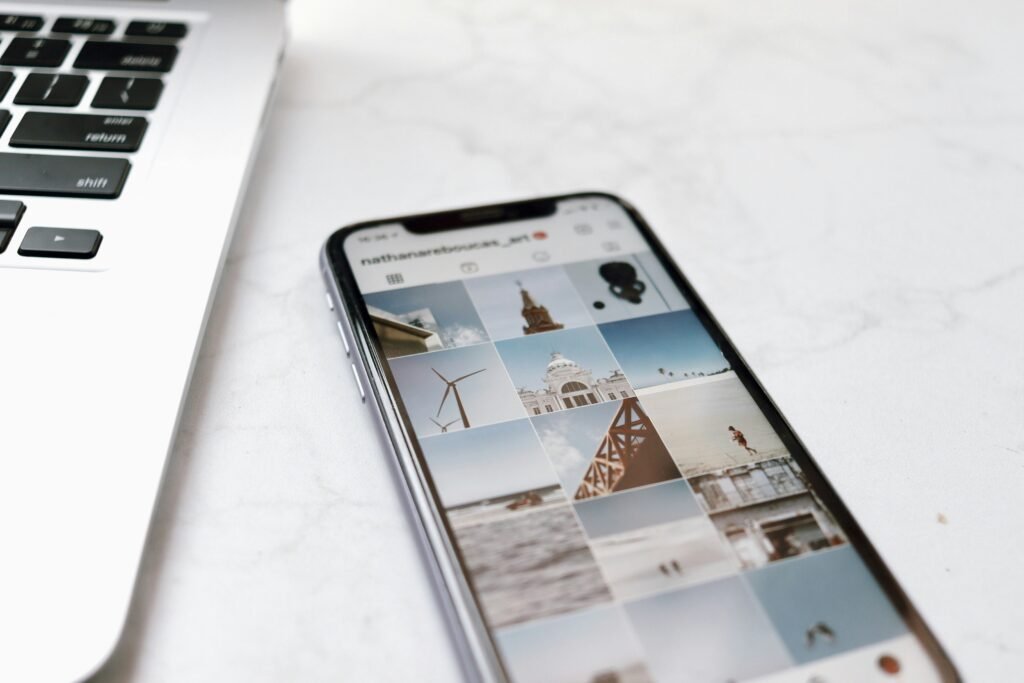
Examples of Strong Instagram Alt Text
Since a good description makes your content usable for tons more people and helps search engines index it better, here are some quick, literal examples you can copy for things like people, products, nature, and graphics.
People and Portraits
Here are some examples of alt text of people or animals:
“Woman in orange swimsuit crouches on surfboard riding a small wave.”
“Black Labrador guide dog with orange harness sitting under a fall maple.”
Products and Retail Posts
Here are some examples of alt text of products:
“Matte black wireless earbuds in open charging case on marble counter.”
“Cotton crewneck sweater folded on wooden table with navy price tag visible.”
Nature, Travel, and Lifestyle Imagery
Here are some examples of alt text of nature, lifestyle or travel:
“Snow-capped granite peaks glowing orange at sunset over alpine lake.”
“City rooftop cafe at dusk with string lights and two empty chairs.”
Graphics with Text and Promotional Banners
Here are some examples of alt text of promotional banners or graphics:
“Blue banner reads: 25% off all backpacks this weekend.”
“White promo card shows: Join our workshop — Nov 14, limited seats”
- Keep each example under about 125 characters so the whole line gets read.
- Remember to only describe what you can actually see, saving any extra storytelling for the main caption.
| Type | Focus | Best practice |
|---|---|---|
| People | Subject, action, distinct detail | Lead with who/what |
| Product | Material, color, setting | Avoid sales language |
| Graphic | Exact wording shown | Include core message verbatim |
Mobile Accessibility Without Limits
Generate perfect alt text from your pocket. Available for iOS and Android.
iOS Features
- Native SwiftUI interface
- iCloud sync
- Shortcuts support
- Widget support
Android Features
- Material Design 3
- Google Drive sync
- Share menu integration
- Quick settings tile
Beyond Alt Text: Captions, Photo IDs, and Video Accessibility
You should know that making your posts accessible is really about using a few features together, not just one thing; you need to combine your short descriptions with clear captions and good audio so that every single person can get the same information and context.
Using photo IDs in captions for Additional Context
If your alt text box is too short, just add a little photo ID right into your main caption to give more details; use that extra space in the caption for things like the scene context, names, or any backstory you couldn’t squeeze
Closed Captions for Reels and Videos
Make sure to add closed captions to your Reels and any video uploads so that all the spoken words and important sounds are readable, especially when people are watching in noisy places; screen readers use these captions too, so write them clearly and don’t just copy and paste your alt text.
Audio Descriptions to Describe Visual Context
If your video’s dialogue doesn’t cover everything important that’s happening visually, offer an optional audio description; this helps visually impaired viewers get the full context by describing the actions, any words on the screen, and key visual cues. Then, we recommend to test your screen readers to make sure everything works well.
Stories: Using Captions When Alt Text isn’t Available
Since Stories don’t have an alt text box, you should use the Captions sticker and clear written text to make that content accessible, and for your regular feed posts, always make sure you include any words visible on the image in your short description because screen readers can’t read those words embedded in the picture.
- To see the impact of your efforts, keep an eye on watch time and completion rates after you start adding captions or audio descriptions.
- Write up a quick guide so your whole team knows exactly when they should be using photo IDs, captions, and audio descriptions.
| Feature | Best use | Why it matters |
|---|---|---|
| Photo ID in caption | Extra context beyond short descriptions | Gives fuller information for your audience |
| Closed captions | Reels and videos | Makes dialogue and cues readable in any environment |
| Audio descriptions | Visual-heavy videos | Describes actions for visually impaired users |
Workflow Tips to Make Your Instagram Content Accessible
You should create an easy workflow so that accessibility is just a routine step, not something you forget about until the end. Start with a short pre-publish checklist that makes sure every post has your Instagram alt text, confirms that any words on the picture are included, and adds captions for videos. Also, keep the character limits and ordering rules visible so your team always lists the most important stuff first.
Building an Internal Checklist for Alt Text and Captions
Include these quick checks before you hit publish:
- Write a quick alt text line and make sure you’ve included any visible words from the image.
- Add captions for your Reels and videos, and use a clear photo ID in the caption if you need to add more detail.
- Do a fast check to get rid of any filler words, emojis, or unnecessary keywords that just make things confusing.
Team training and Editorial Guidelines
To help everyone on the team, you should write down the exact steps for adding or editing descriptions on both your phone and computer so no one has to guess, and also make sure you train your editors to avoid repeating descriptions and to keep the wording super tight.
| Role | Frequency | Metric to track |
|---|---|---|
| Creator | Every post | Completeness of alt and captions |
| Editor | Weekly spot check | Removal of filler/emojis |
| Manager | Monthly audit | Reach, saves, watch time |
You should keep an updated style guide with examples and a way for your team to give feedback, so they can easily flag descriptions that are confusing and suggest better ways to write them. Also, schedule checks for your posts that are always relevant and measure the impact of your work to show why it’s worth

Common Mistakes to Avoid with Instagram Alt Text
Sometimes just a few simple mistakes when writing descriptions can really hurt accessibility and confuse search engines. Relying only on the automatic descriptions often misses important words or any text that’s actually in the image, so you should always write or review the description yourself to make sure readers get precise information.
Also, make sure to skip filler phrases like “photo of” and leave out the emojis, as they just add unnecessary noise for screen readers without helping users or discovery at all.
- Don’t cram in keywords, only use them if they naturally fit and help describe the picture.
- Never just copy the caption; make the description complementary and focus only on what you can see.
- For carousels, give each frame its own unique description, instead of one general line for the whole thing.
- Read your line out loud to find awkward parts and cut extra words so that assistive tools can read the entire thing without cutting it short.
| Mistake | Fix | Why it matters |
|---|---|---|
| Auto-generated only | Write or edit each description | Improves accuracy for screen readers and search |
| Filler and emojis | Use plain, useful wording | Speeds comprehension for listeners |
| Keyword stuffing | Include relevant terms sparingly | Keeps descriptions clear and search-friendly |
| Copied caption | Write a unique, image-focused line | Provides complementary context for users |
Conclusion
Time to wrap up your accessibility work with an easy routine that keeps your visuals clear for everyone! You’ll now have a simple way to add and edit Instagram alt text using Advanced Settings on mobile or Accessibility on desktop. Always write short, human descriptions and skip the filler words or emojis so assistive tech reads the most important stuff first.
When one field isn’t enough, expand accessibility by adding captions and audio descriptions to your videos and Stories. Use a checklist and team guidelines to scale this across all your content, doing this is great for usability, helps your search and SEO, builds trust, and by committing to updating your older posts, you let more people access your work.
The Complete Alt Text Solution
WordPress plugin, iOS app, Android app. One ecosystem. Perfect accessibility.
Alt Text Instagram FAQ
You make visual content accessible to people who use screen readers or have visual impairments, and you provide context that helps search and discoverability across the platform.
Automatic descriptions are generated by the platform’s machine learning and can miss nuance. When you write your own, you control clarity, relevance, and keywords so readers get accurate information. There are some great bulk generators like the Img Alt Gen Pro, that will do your pictures in bulk and in over 100 languages.
You can add them during upload via Advanced Settings in the mobile app, through the desktop Accessibility options, and individually for each image in a carousel to ensure precise context.
Keep it concise and focused with one or two short sentences that list the most important visual facts first. Use plain language and avoid filler words or emojis so the message reads smoothly aloud.
Include keywords sparingly and naturally. Aim for relevance rather than repetition; overuse can harm clarity and user experience.