


Did you know that properly described images can lift your search visibility and accessibility by double digits? That small gain makes a big difference if you manage many editorial photos on your website. In this guide you’ll learn how to use alt text generation in your browser with a single right‑click. Tools like AltText.ai and GenAlt turn an image into a clear description fast, using page context and optional SEO keywords. However our recommendation is Img Alt Gen Pro for quick and easy alt text generation.
Img Alt Gen Pro focuses solely on producing more accurate, context-aware descriptions for long articles and content-heavy sites. It pairs well with separate image compression tools and is ideal when accessibility is a top priority, so you’ll also get practical details about accounts, API keys, privacy statements and multilingual output so you can onboard teams and maintain compliance while scaling your workflow.
Key Takeaways
- You can speed up alt text work by generating descriptions directly in the browser.
- AltText.ai and GenAlt offer right‑click workflows and rapid, copy-ready outputs.
- Img Alt Gen Pro delivers the most contextually accurate descriptions for editorial images.
- Check account, API, and data handling before you commit to a tool.
- Use page context and meta info to guide phrasing for better SEO results.

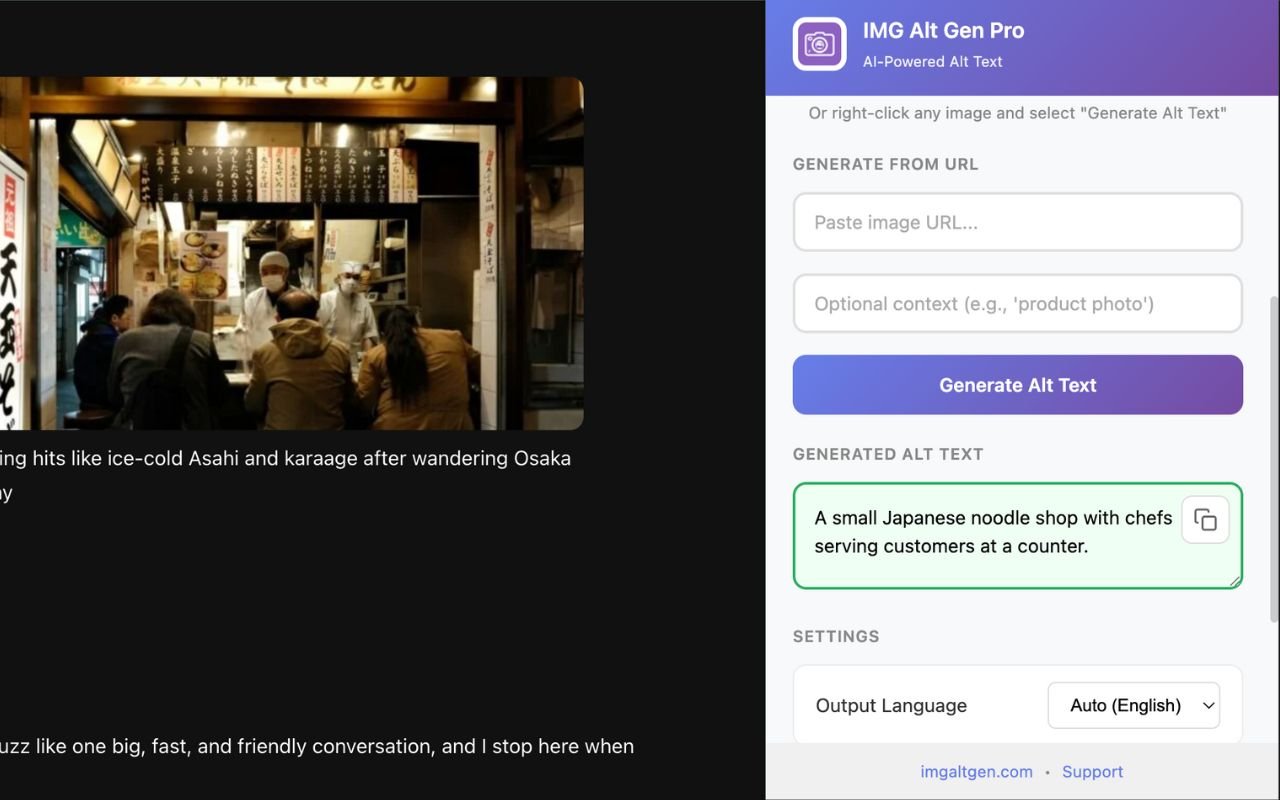
Generate alt text as you browse
Right‑click any image, hit generate, and paste the result straight into your CMS - fast, clean, and accessible.
Why Doing Image SEO in your Browser Matters
Working with images directly in your browser cuts hours from routine publishing tasks and you will keep context, page goals and brand language in view as you write alt text for each image. Therefore, an extension like Img Alt Gen Pro focuses on contextually relevant descriptions, so in‑browser workflows shine for content-heavy and accessibility-focused teams. You can pilot quickly with a Free Trial that offers 10 tokens to test how it fits your process.
AltText.ai pulls page meta descriptions to align SEO and supports more than 130 languages, however it requires an account and API key and discloses privacy practices that limit data use and deny selling user data. Whereas, GenAlt gives simple right‑click actions and copy controls and its privacy approach is transparent and the extension was updated on December 30, 2023.
- Generate descriptions where the image lives to publish faster and improve SEO results.
- Align wording with page meta and goals so search relevance and user clarity improve.
- Review outputs in context to reduce back-and-forth and help people who rely on assistive tools.
- Keep global workflows tight with real-time multilingual support and clear data handling.
| Tool | Key capability | Notes |
|---|---|---|
| Img Alt Gen Pro | Context-aware alt text for content-heavy pages | Best for accessibility teams; Free Trial: 10 Tokens |
| AltText.ai | Uses page meta, 130+ languages | Requires account/API key; privacy policy restricts data sale |
| GenAlt | Simple right‑click creation and copy actions | Privacy transparency; updated Dec 30, 2023 |
Alt Text Fundamentals for SEO and Accessibility
Clear image descriptions make pages easier to navigate for screen reader users and clearer to search engines, so we suggest to keep your goal simple and describe what matters for the page and for users.
What it is and how Screen Readers use it
Alt text is a concise, accurate text alternative for an image and screen readers read that text to people who cannot see the photo, so clarity matters more than flourish. We do suggest that you test your screen reader after you generate your alt text to manually edit if needed.
How it Supports SEO and User Experience
You will find that well-written alt text provides search engines with context about what a page covers because that strengthens topical relevance and can improve rankings and user engagement.
When to Omit and use a Null Attribute
Make sure that for purely decorative images use a null attribute (alt=””) so assistive technology skips them, as this reduces noise and speeds access for people using screen readers.
- Describe key subjects (for example: polar bear lying on a rocky surface near water) rather than camera settings.
- Avoid redundant phrases like “image of” or “picture of.”
- Match the description to the page purpose so results reinforce content, not distract from it.
| Role | Focus | Best practice |
|---|---|---|
| Screen readers | Convey essential info | Keep concise, relevant |
| SEO | Context for page topic | Use targeted keywords naturally |
| Design | Decorative elements | Use null attribute to omit |
Image SEO in your Browser- A Practical Guide to Alt Text Generation with a Chrome Extension
Discover the power of alt text generation Chrome extensions. Our how-to guide shows you how to enhance image SEO and accessibility directly in your browser.
Read MoreHow Content Teams Can Fix Image Alt Text While They Edit Pages
Learn how to fix image alt text on your website with our step-by-step guide. Improve accessibility and SEO with high-quality alt text.
Read MoreStop Ignoring Your Image SEO: Chrome Workflows for Busy Marketers in 2026
Boost your website's visibility with our expert guide on image SEO Chrome workflows. Learn how to optimize your images for better search engine rankings.
Read MoreHow AI Is Transforming Image Management for Websites in 2026
Transform image management with Img Alt Gen Pro's advanced ai for images technology. Enhance accessibility and SEO for your content-heavy site. Get started with 10 free tokens.
Read MoreHow 2026 AI Is Changing Digital Accessibility in Images
Discover how AI is revolutionizing digital accessibility in images with advanced alt text generation. Learn more about ai accessibility solutions for your website
Read MoreHow to Use AI to Manage Large Image Libraries in 2026
Discover top tools for large image library processing. Learn how AI-powered solutions can streamline your image management tasks and improve accessibility.
Read MoreHow AI Models Are Trained to Describe Images in 2026
Learn how ai model training works and why it's crucial for your website's image descriptions. Improve your site's accessibility with high-quality alt text generated by advanced AI models.
Read MoreHow to Build AI-Powered Image Workflows
Learn how to build ai powered image workflows for content, SEO, and UX teams. Discover the tools and techniques to streamline your image processing and improve accessibility.
Read MoreHow Computer Vision in E-Commerce Boosts SEO, UX and Conversions
Discover how computer vision in ecommerce can boost your online store's SEO, UX, and conversions. Learn the benefits and best practices for implementation today.
Read MoreThe Tech Behind AI-Generated Image Alt Text and How it Works
Improve your website's accessibility with AI-generated image alt text. Find out how Img Alt Gen Pro can help you create accurate and contextually relevant alt text for your images.
Read MoreHow to Automate Image Metadata with AI in 2026
Discover how to automate image metadata using advanced AI technology. Enhance your content's visibility and compliance with automated alt text and more.
Read MoreWhat is Alt Text? A Complete Guide for Beginners (2025)
Hey! Ever worry what happens if your product photo breaks? This Alt Text guide for beginners is your casual, easy-to-read intro to the world of...
Read MoreSetting up your Chrome Toolkit for Alt Text Generation
You can get started in minutes by installing two lightweight extensions and linking an account, so follow the simple steps to generate descriptions, copy them and paste into your CMS without leaving the page.
Installing AltText.ai
With this extension, you can install AltText.ai from the web store, then right‑click an image, choose “Generate Alt Text,” then click Copy to place the description into your CMS field.
You will need to connect an account and API key to enable SEO keyword passing from page meta and the extension supports 130+ languages and shows strong adoption with 4.8/5 (9 ratings), 8,000 users. The latest version 1.0.8 was updated on April 17, 2025 and the developer states user data is not sold or used for unrelated purposes.
Trying GenAlt for Quick, Descriptive Alternate Text in-Context
GenAlt offers simple commands like “Get Alternate Text from GenAlt” and “Copy AI Image Description from GenAlt,” so you can use it to speed through batches when you need fast, in-context descriptions.
It has a 4.3/5 rating (53 ratings), 2,000 users and version 2.7.7 which was updated December 30, 2023 and the privacy disclosures explain how website content is handled for core functionality.
Accounts, API keys and Free Trials to get Started Fast
- Create an AltText.ai account and request a free trial to test SEO-driven outputs.
- Use API keys to allow the extension to pull page meta and align descriptions with your on-page strategy.
- Try free trials before committing; if you need higher fidelity, evaluate Img Alt Gen Pro (Free Trial: 10 Tokens).
Languages, Privacy and Data Handling you Should Know
You can enable multilingual options when you publish to global sites and AltText.ai covers 130+ languages so localized descriptions stay accurate.
However, always review developer privacy statements to confirm your information and site content are used only for core features and not sold or repurposed.
| Extension | Key features | Notes |
|---|---|---|
| AltText.ai | Right‑click generate, SEO meta keywords, 130+ languages | 4.8/5, 8,000 users; v1.0.8 (Apr 17, 2025); requires account & API key; privacy: no data sale |
| GenAlt | Quick commands, copy AI image description | 4.3/5, 2,000 users; v2.7.7 (Dec 30, 2023); simple workflow and privacy disclosures |
| Img Alt Gen Pro | Context-aware, higher-fidelity outputs | Best for accessibility teams; Free Trial: 10 Tokens for evaluation |

Alt Text Generation Chrome
Make sure to use the browser workflow below to turn any on‑page image into a concise, accessible description fast, so the process keeps you in context and speeds publishing while preserving accuracy.
Right‑Click an Image and Select the Extension Command to Generate Text
Open the target page, right‑click an image and choose the extension action (for example, “Generate Alt Text” or “Get Alternate Text from GenAlt”). The tool will produce a first‑draft description in seconds.
Copy, Paste and Refine Descriptions Directly in your CMS or Page
Click the Copy control in the extension and paste the output into your CMS alt field on the same page, then edit the phrasing to match the page purpose with short, specific lines that highlight subject and intent.
- Compare outputs across tools; use Img Alt Gen Pro’s Free Trial: 10 Tokens to test context-aware results side‑by‑side.
- Add critical details like action or setting when needed (see polar bear and red fox examples for concise scene framing).
- Repeat for all images on the page, avoid duplicating adjacent captions, then save and publish.
- After publishing, recheck the page to confirm the field holds your updated description and decorative images remain empty.
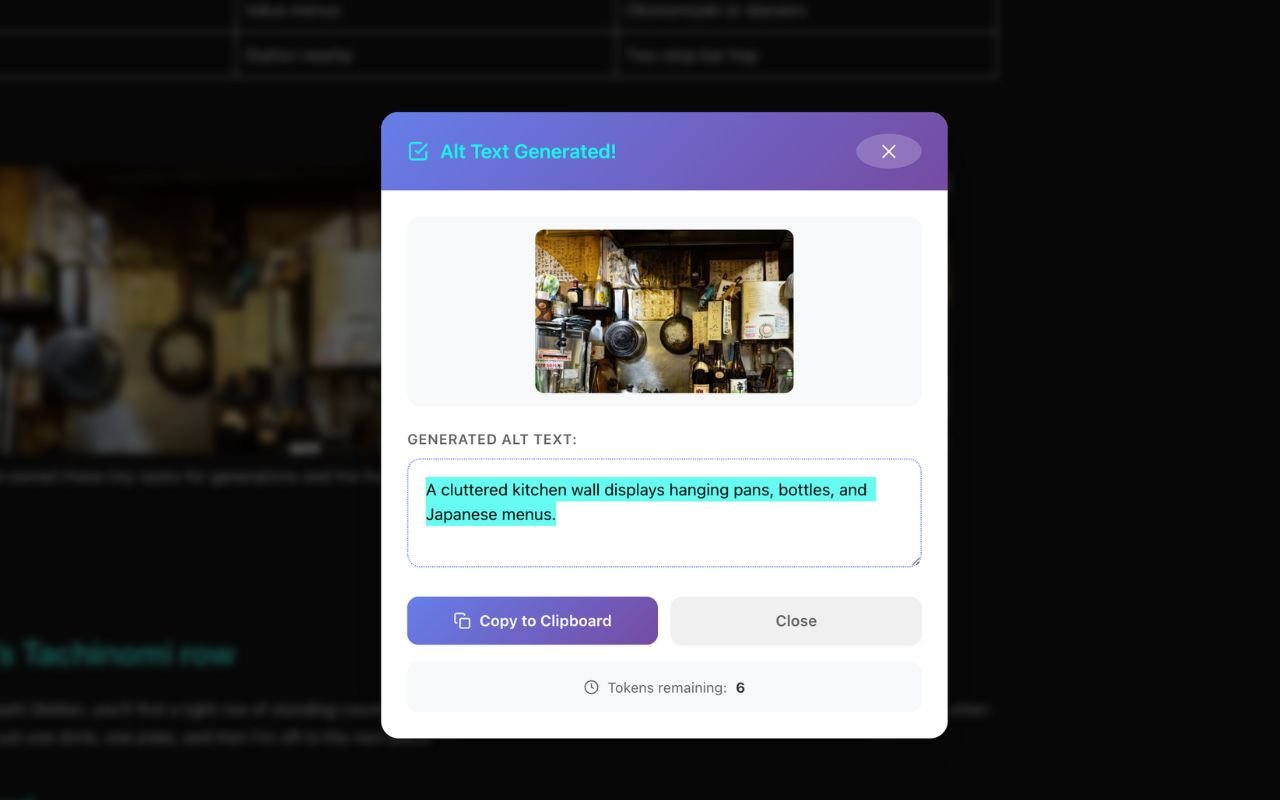
Right‑click → Generate → Copy
Perfect for audits, client tweaks, and quick accessibility clean‑ups on any site.
Optimizing Your Generated Descriptions for Search and People
Make every generated image description pull double duty by including clarity for users and signals for search, then start by reading the page title and meta description before you accept a draft. Lastly, use those lines as anchors so the description supports your SEO focus without repeating the headline.
Leverage Page Titles and Meta Descriptions to Guide Keywords
AltText.ai can pull page meta for keyword cues and localized phrasing, so we recommend to use that input to keep your phrasing natural and relevant.
Write Context-Aware Descriptions that Match the Page’s Purpose
Our recommendation is to let Img Alt Gen Pro’s context analysis shape the final wording when you need consistent quality across content-heavy sites and try to keep each line specific to the image and its role on the page.
Do’s and Don’ts
- Do anchor phrasing to the page goal; avoid keyword stuffing.
- Do edit generator output to remove fillers like “picture of.”
- Don’t repeat nearby captions or anchor text; omit descriptive strings for decorative images (use an empty attribute).
- Favor clear nouns and actions over marketing adjectives to help search and assistive tools.
| Action | Why it matters | Quick tip |
|---|---|---|
| Use page meta | Aligns image description with SEO intent | Pull one keyword from the title, use it naturally |
| Light edit | Improves clarity and tone | Remove redundant words and shorten phrases |
| Skip decorative images | Reduces noise for assistive tech | Keep the field empty for purely visual elements |
Quality Assurance Tips for Better Results at Scale
We suggest to set simple verification steps so every image on your site meets accessibility and SEO goals, then create a concise review checklist that you use for each image. You will need to confirm it has appropriate alt text or a null alt for decorative elements and keep descriptions short, accurate and aligned with page intent.
Create and Document Traceable Checks
- Record which extension and version produced the output and note how information was sourced (for example, page meta).
- Log edits you applied to the generated text so you can audit changes and coach authors.
- Include developer privacy disclosures and web handling notes in governance docs to show how data and site content are processed.
Always, set measurable thresholds for acceptable results by defining maximum length, banning redundant phrasing and requiring clarity for people who use assistive tools.
You can then sample published pages weekly, then capture data points like generator used, pass/fail outcomes and common issues so you can refine prompts and workflows.
| QA Item | Why it matters | Action |
|---|---|---|
| Presence check | Ensures every image on the website is reviewed | Confirm alt or null alt; mark pass/fail |
| Source & edits log | Maintains traceability and coaching records | Record extension, version, meta source, and edits |
| Privacy & developer notes | Shows how data and web content are handled | Store developer disclosures and update governance files |
A tiny tool that saves loads of time
Drop it between posts - it’s compact, responsive, and built for real‑world browsing.
Choosing the Right Extension
A focused image-description tool can outscore broader suites when context and nuance matter most, so your choice affects accessibility, search performance and editorial speed.
Why Img Alt Gen Pro Excels at Contextually Accurate, High-Quality Descriptions
Img Alt Gen Pro analyzes image content and surrounding page copy to produce precise image alt that match your page intent because it concentrates purely on accuracy, so phrasing remains consistent across complex editorial layouts.
We say that it is the best for accessibility-focused and content-heavy websites, it pairs well with existing image compression workflows, so try the free trial and see how it works on your site.
How it Compares with AltText.ai and GenAlt for features SEO and Accessibility
- Img Alt Gen Pro — highest fidelity for nuanced images with strong context awareness and is ideal when wording matters more than speed.
- AltText.ai — pulls page meta for SEO guidance, supports 130+ languages, requires account and API key with a wide adoption and fast setup.
- GenAlt — lightweight right‑click commands for quick edits with minimal setup for teams that need to generate alt text rapidly.
| Tool | Strength | Notes |
|---|---|---|
| Img Alt Gen Pro | Context fidelity, accessibility | Best for content-heavy sites; Free Trial: 10 Tokens |
| AltText.ai | SEO metadata, language support | 4.8/5 (9 ratings); 8,000 users; account + API key |
| GenAlt | Speed and simplicity | 4.3/5 (53 ratings); 2,000 users; privacy disclosures |

Conclusion
In summary, adopt a short, repeatable browser workflow and a focused tool to keep image descriptions consistent and measurable. You can start by piloting Img Alt Gen Pro for high‑fidelity alt text on priority pages, then use AltText.ai or GenAlt for fast right‑click outputs and quick copy controls when speed matters.
Always remember to validate live pages, keep decorative images empty with a null attribute and log edits and data sources. Lastly, measure time saved and error rates to show concrete results and with a clear process you’ll publish better descriptions that help accessibility and SEO.
Preview, generate, move on
Use it on staging, client sites, or competitors - no CMS access required.
Alt Text Generation with a Chrome Extension FAQ
Use a browser extension that integrates with your content management system. After installing a reliable tool, right‑click an image, run the generator command, then copy and paste the suggested description into your CMS field. That workflow keeps you focused on page context and speeds up content and SEO work.
Clear descriptions improve screen reader output and inform search engines about visual content. When you write context-aware descriptions that match page intent, you boost relevance for users and search crawlers while making your site more inclusive for people who rely on assistive technology.
If an image is purely decorative and provides no informative value, use an empty attribute so screen readers ignore it. That prevents redundancy and streamlines the user experience for visitors who use assistive tools.
Consider tools such as AltText.ai, GenAlt, and Img Alt Gen Pro. Each lets you generate suggested descriptions right from a right‑click menu. Compare features like batch support, privacy, and workflow integration to match your content and developer needs.
Review the extension’s privacy policy and data handling practices. Prefer tools that process images locally or clearly state how they use uploaded visuals. This reduces risk for sensitive content and aligns with compliance needs for developers and site owners.